Documents #
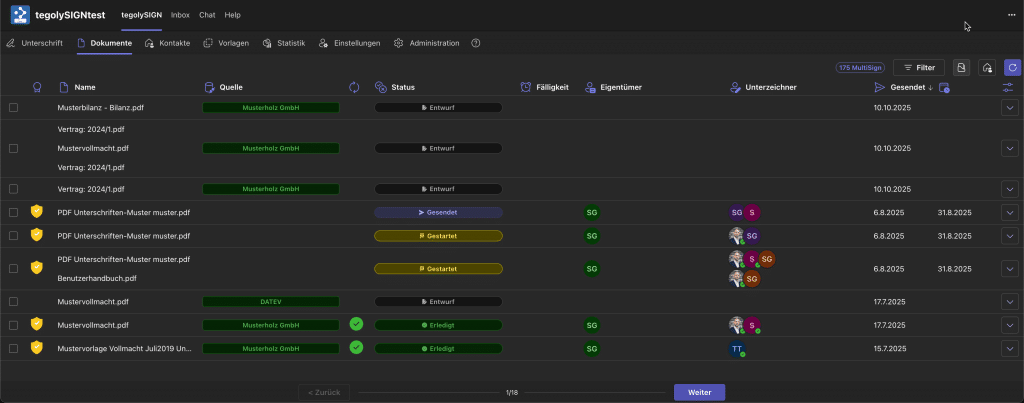
This is your overview of all documents. Here you can see the status, search for documents, download them, edit the certificate and drafts. You also have different filter options.
Document Properties #
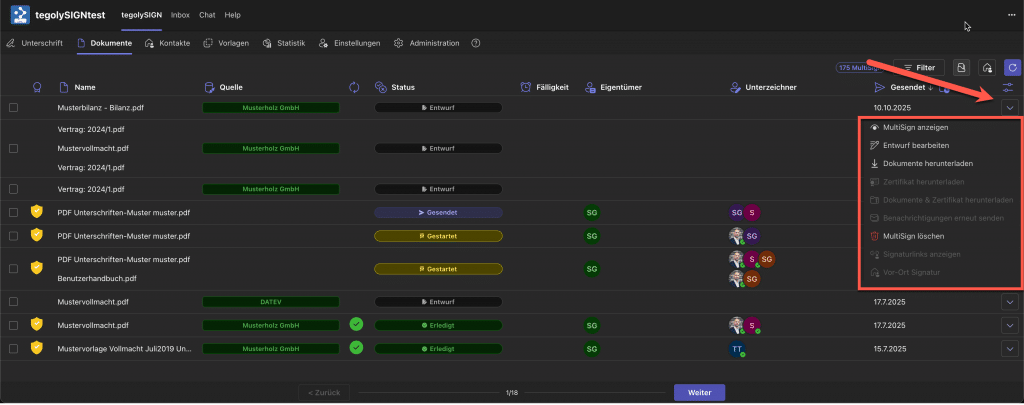
You can perform some additional functions for each document in your list, e.g.
- View Document
- Edit Drafts
- Download document
- Download certificate for this document
- both (download document and certificate)
- Resend notification
- deleting the document
- Creating a Signature
- On-site signature
Document Properties with MultiSign #
With MultiSign documents, you can perform some additional functions, such as:
- View Documents
- Download documents
- Download certificate for these documents
- both (download documents and certificate)
- Delete documents

View Document #
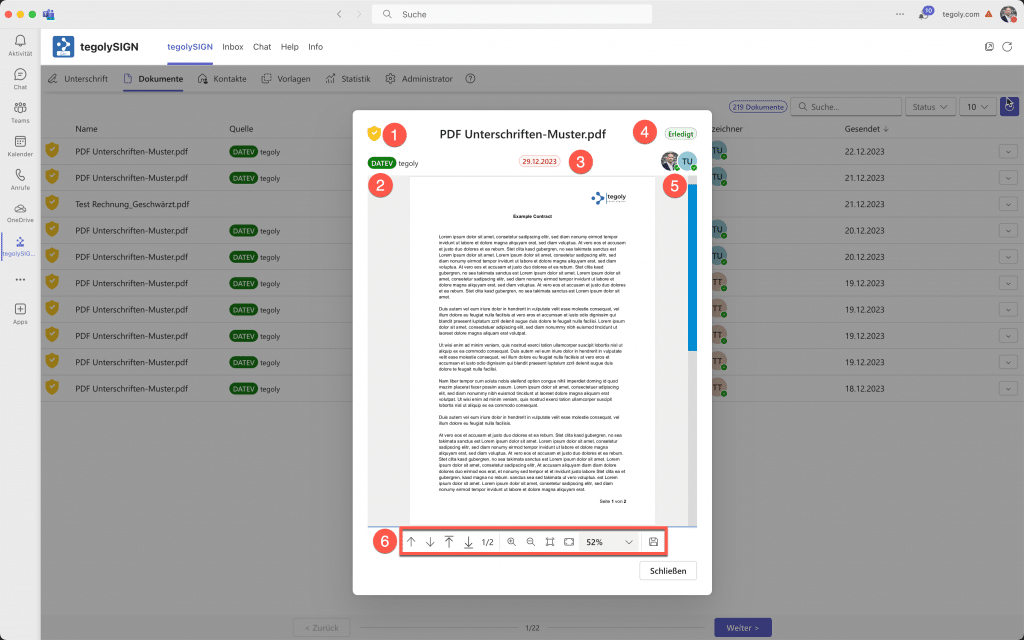
If you click on ‘View Document’, you will see other important information in addition to the document preview:
- The symbol displayed in the upper left corner shows you which signature level you have chosen (yellow=EES, blue=FES, green=QES)
- Here you can see from which source the document comes. If there is no explicit source, then nothing will be displayed here.
- If there is a due date for this document, then it will be displayed here.
- In the upper right corner, the document status is displayed. There are the following statuses: Sent, Started, Done, Rejected, and Draft.
- Here you can see who is or was involved in the document for signature.
- The bar below the document shows you some PDF tools that you can use to move around in the document preview.
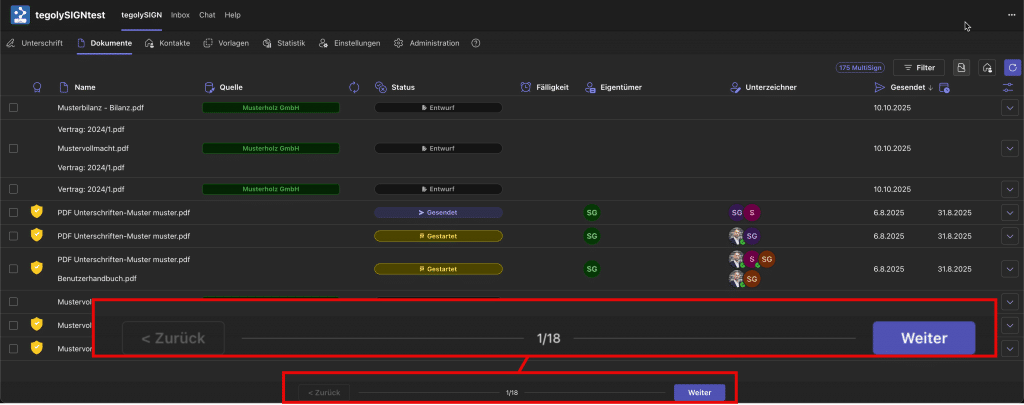
With MultiSign, you can view all documents via “Next” and “Previous”.
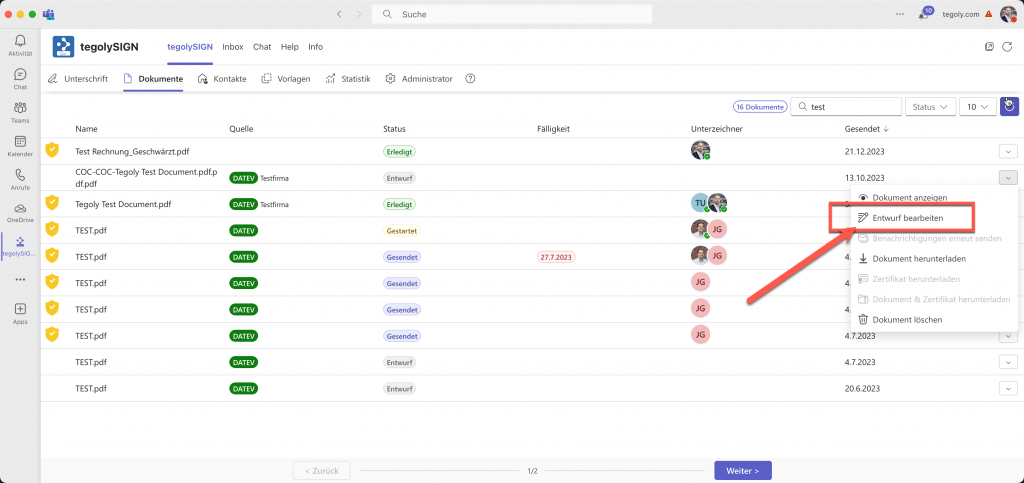
Edit draft #
This menu item is only visible if the document comes from a specific source, such as datev. So if this point is not greyed out, you can use it to initiate the signature process once.
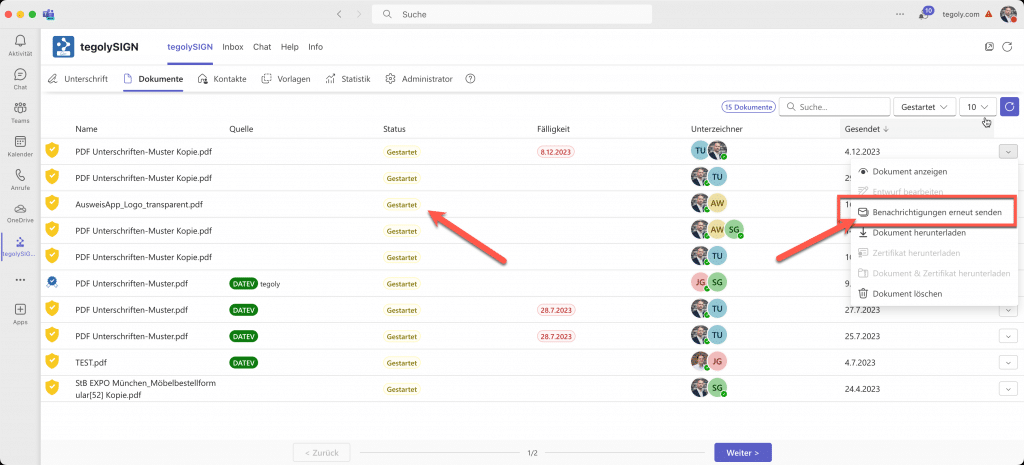
Send notifications #
Here you have the option to send notifications again. However, the document must have started the status and at least one signer must not have signed yet.
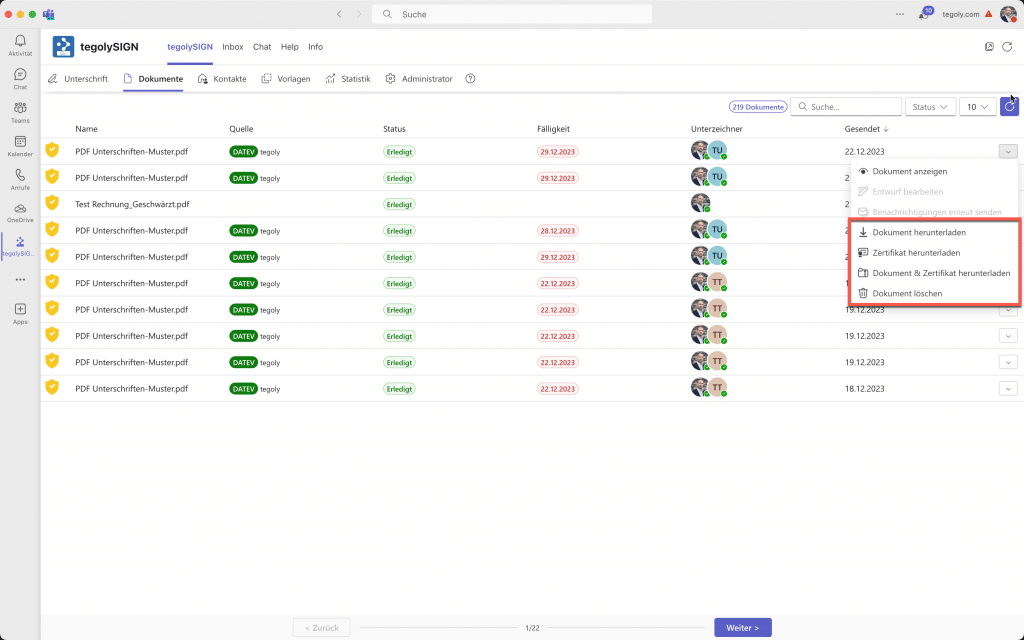
Downloading Documents #
There are several ways to download the documents or the corresponding certificate. Either you download only your signed document or only the certificate or both together as a zip file.
Search and find documents #
In the upper right area you will find the filters to search in the document list.
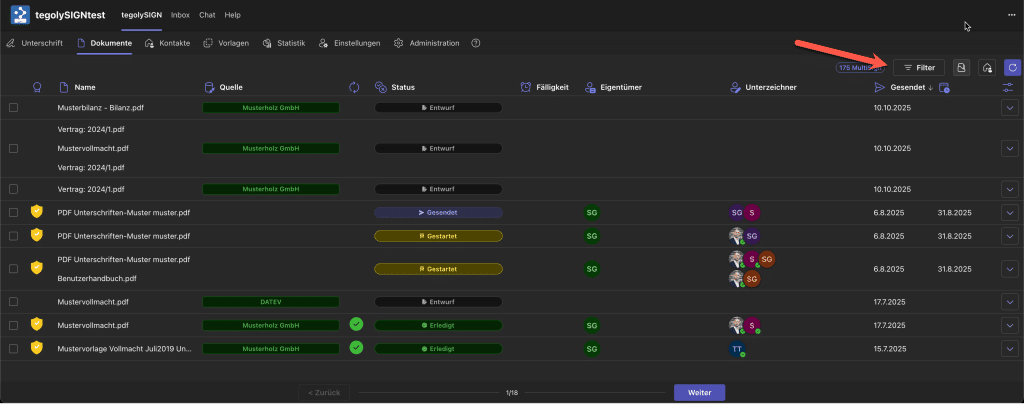
Filter #
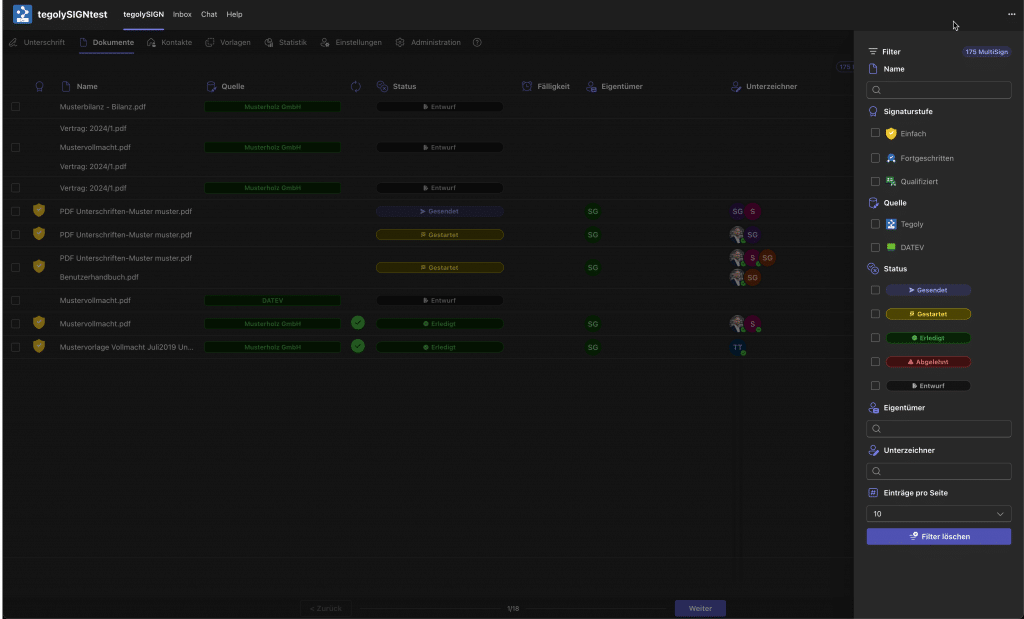
There are various filter functions in the filters.
- Name: here you can search for the document name.
- Signatory level: by ticking one or more signature levels, a filtered document list is output.
- Source: here you can filter according to the original saying of the document.
- Status: Outputs a filtered list of documents by status.
- Owners: here you can search for owners of the documents.
- Signatories: here you can search for signers.
- Entries per page: here you can change the number of documents displayed in the document list.
The Delete Filter button can be used to delete all set filters.
Delete documents #
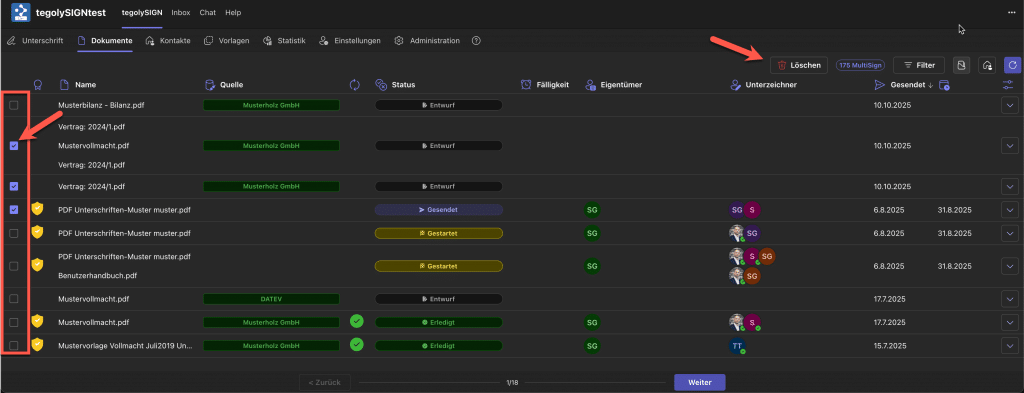
If documents are to be deleted from tegolySIGN, they can be selected via the checkbox on the left and deleted via the Delete button. A window will appear in which the deletion of the documents must be confirmed.
! Documents are deleted immediately and there is no way to restore them!
Signature link #
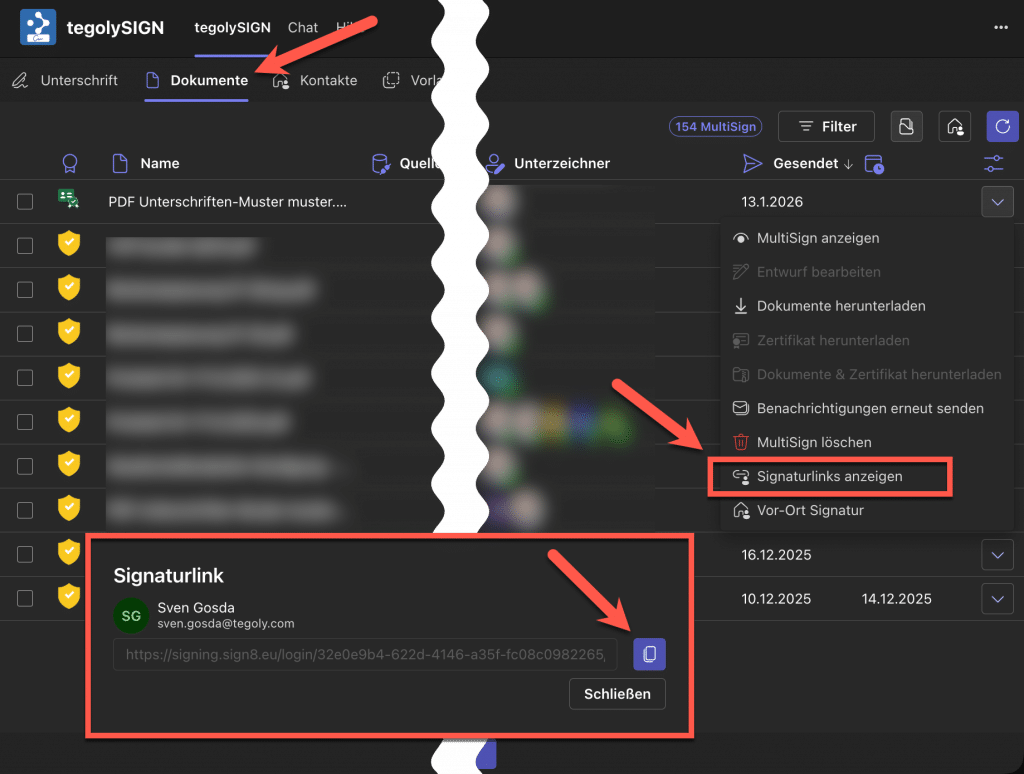
You can copy the signature link at any time and send it separately, e.g. in your own e-mail. To do this, go to the document list and the Documents menu as shown in the picture. Here you can display the link and copy it to the clipboard using the copy key.