tegolyDATEV Sync Installation #
Installation and configuration
step-by-step guide for DATEV administrators and IT system houses
Briefly explained
tegolyDATEV Sync connects tegolySIGN with DATEVconnect. This guide guides you through installation, DATEV authorization, service account, configuration, and functional verification.
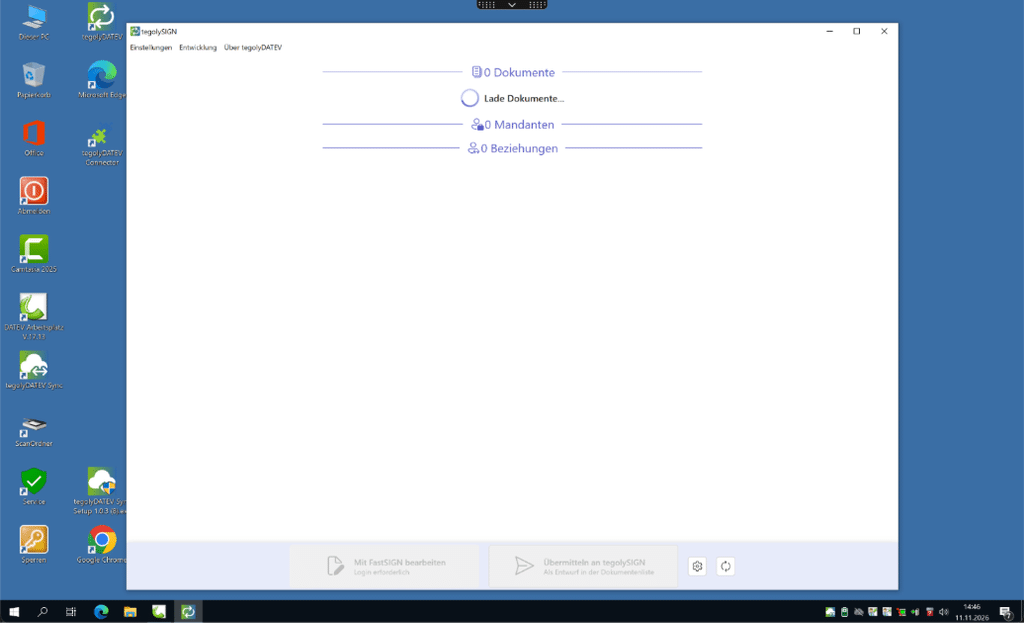
tegolyDATEV interface after successful setup
Overview #
Please follow the steps in the order specified. Local administrator rights and access to DATEV rights management are required for setup.
| Prerequisite | Note |
| DATEVconnect (item no. 95280) | Must be installed. |
| DATEVconnect Document Management (Art. No. 63218) | The license must have been retrieved. |
| System within the law firm network | Installation in the DATEV/ASP environment by an administrator. |
| DATEVconnect permission | The account used requires the DATEVconnect permission. |
| Microsoft/Windows account | The service account must be able to access DATEVconnect. |
| tegolySIGN API Key | The API key is provided in tegolySIGN under Administration > DATEV. |
| Run the installation file | tegolyDATEV Sync Setup as administrator. |
Install tegolyDATEV Sync #
Please download the tegolyDATEV Sync here.
Start the installation file by right-clicking with “Run as administrator.”
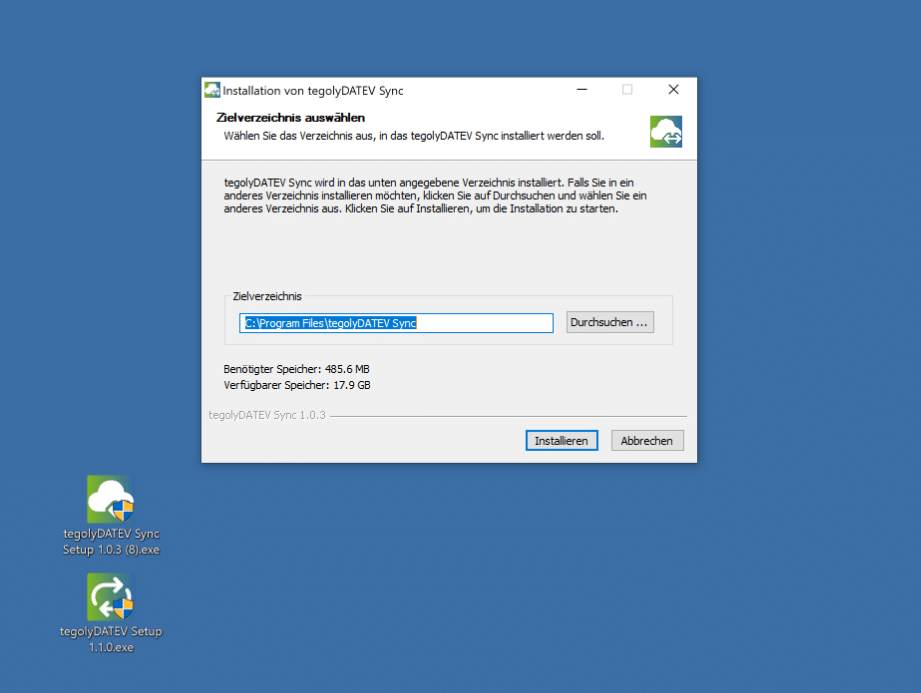
Select target directory and start installation
- If possible, keep the suggested target directory C:\Program Files\tegolyDATEV Sync.
- Click “Install.”
- Confirm Windows User Account Control if it appears.
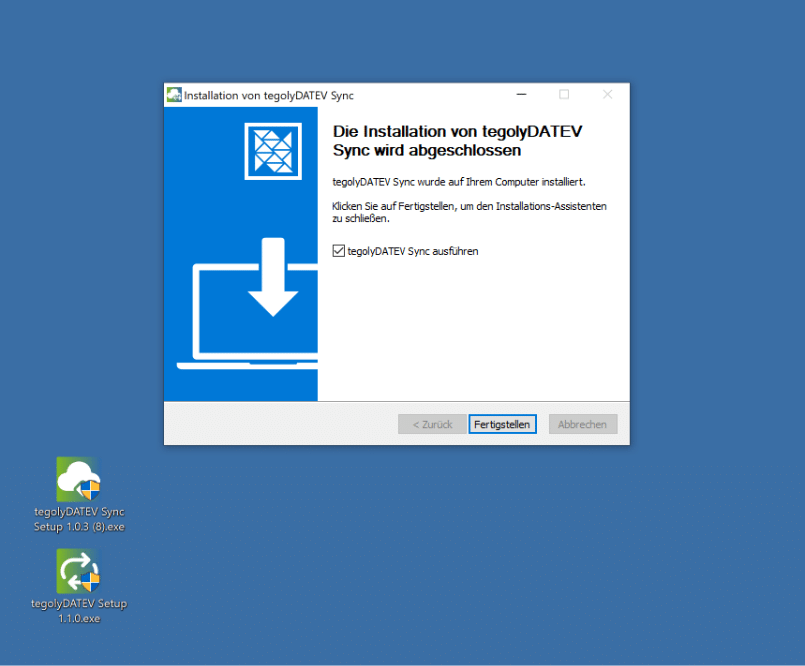
Complete installation and start tegolyDATEV Sync
Check DATEVconnect law #
Check in the DATEV Workstation whether the intended account has the required DATEVconnect right. This account must be stored as the account for the service in the next step (DATEV user = Windows user).
- Open the “Organization” section in the DATEV Workstation.
- Switch to “Security and Rights” and open “Rights Management”.
- Select the intended DATEV user.
- Check under “Total Rights” > “Programs” whether “DATEVconnect” is enabled.
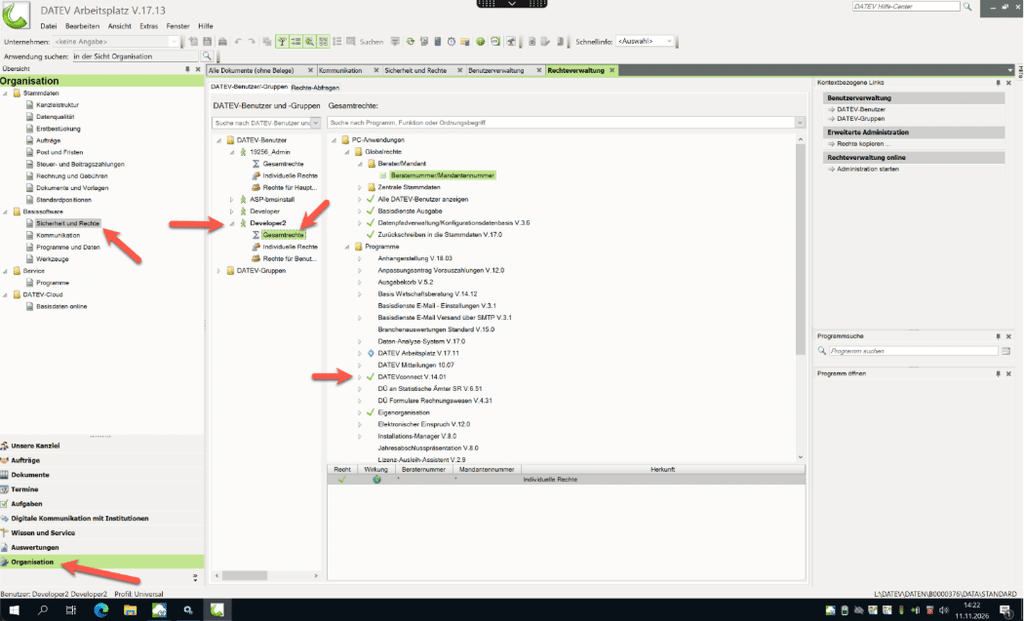
Check DATEVconnect permission in DATEV rights management
Note
If the DATEVconnect right is missing, it must be granted by a DATEV administrator. Without this permission, synchronization cannot access DATEV.
Set Windows service account #
The service “tegolyDATEV ConfigServer” must be run with the designated DATEVconnect account.
- Open Windows Services Manager, for example via services.msc.
- Search for the service “tegolyDATEV ConfigServer”.
- Open the properties by double-clicking and switch to the “Sign In” tab.
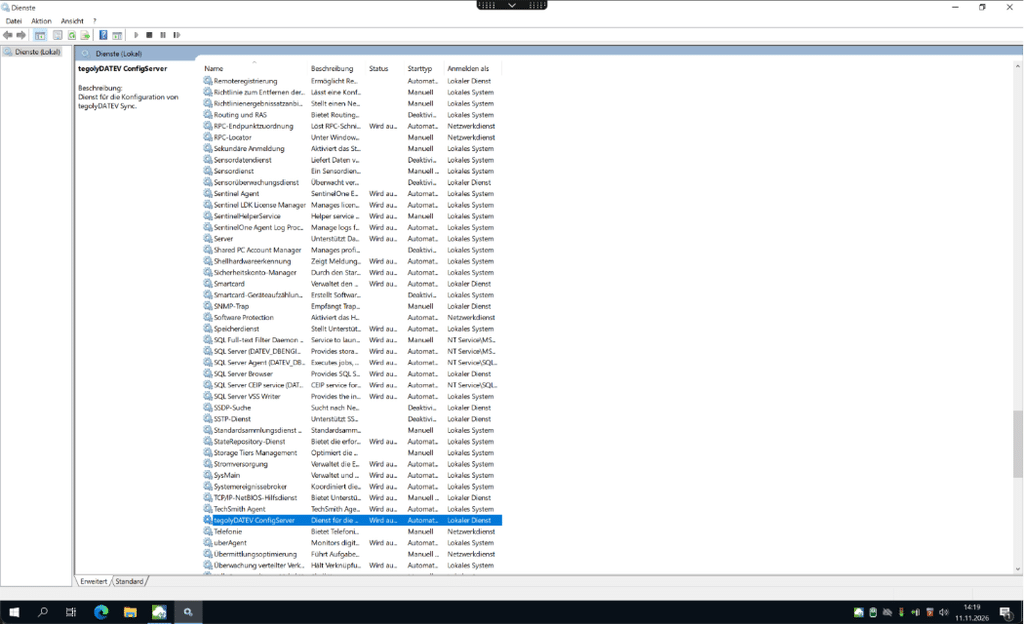
Service tegolyDATEV ConfigServer in Windows Services Manager
Select user account and set password #
- Click “Browse” and locate the designated service account.
- Select the account and confirm with “OK”.
- Enter the password twice and apply the change.
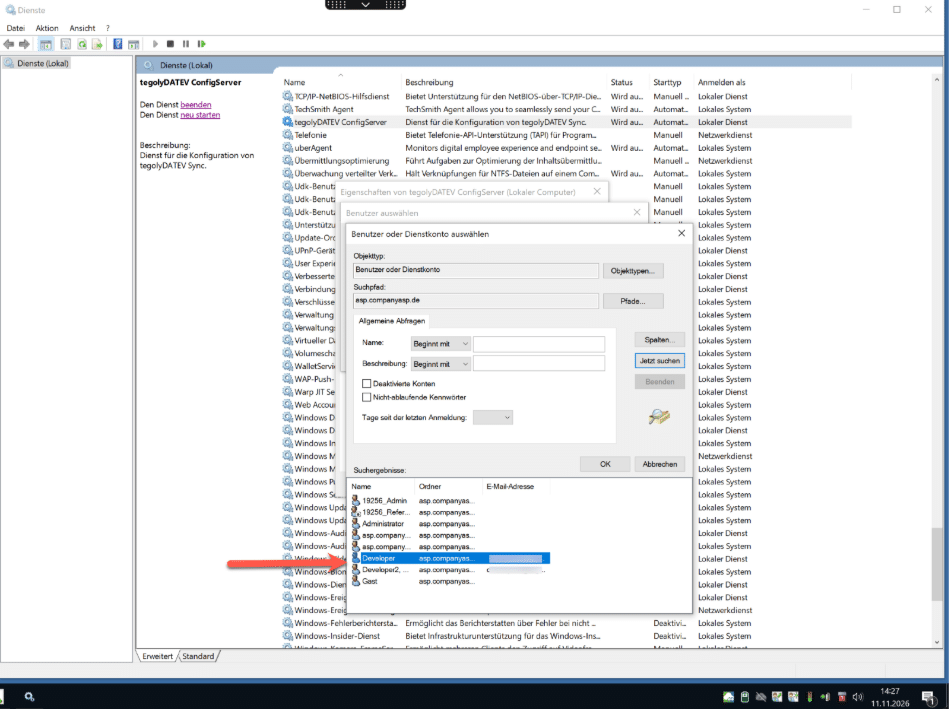
Search for user or service account
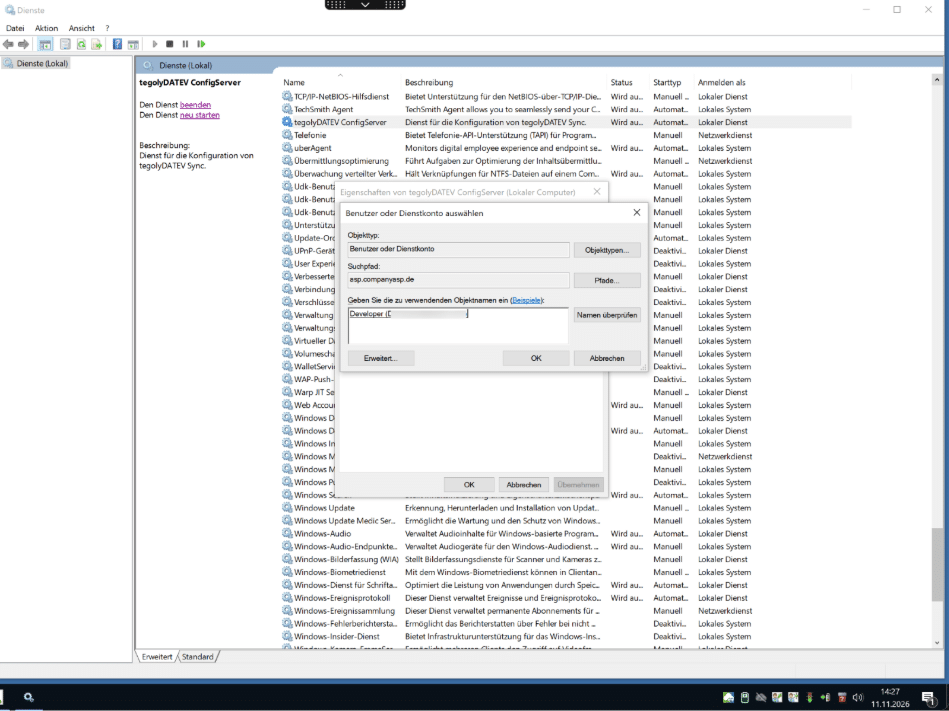
Select appropriate account
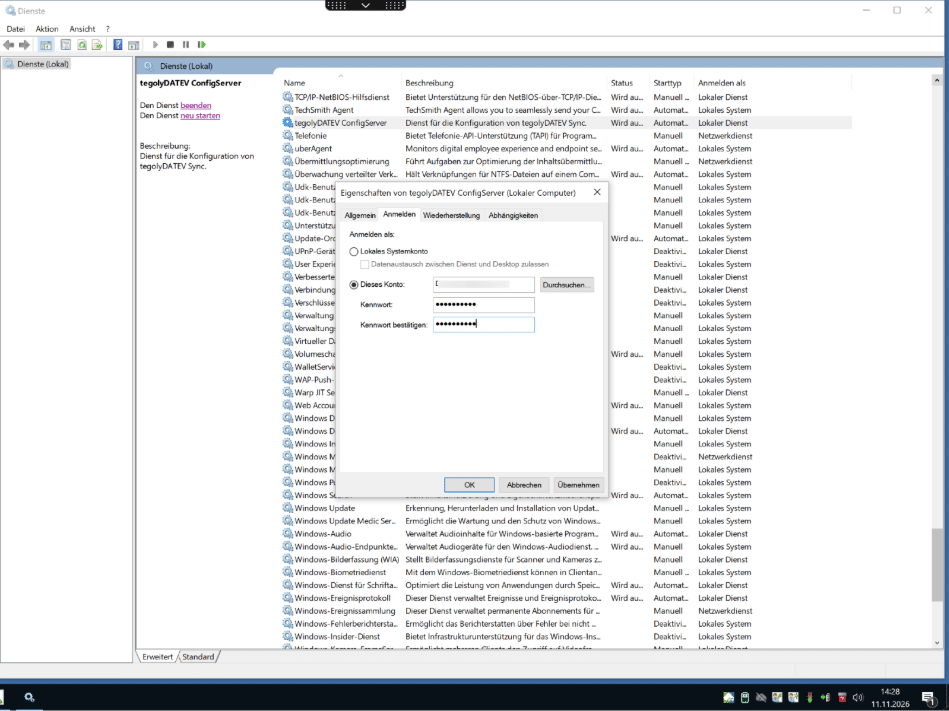
Enter password and take over service account
Restart service #
Restart the “tegolyDATEV ConfigServer” service after changing the login account. Then check whether the status “Running” is displayed.
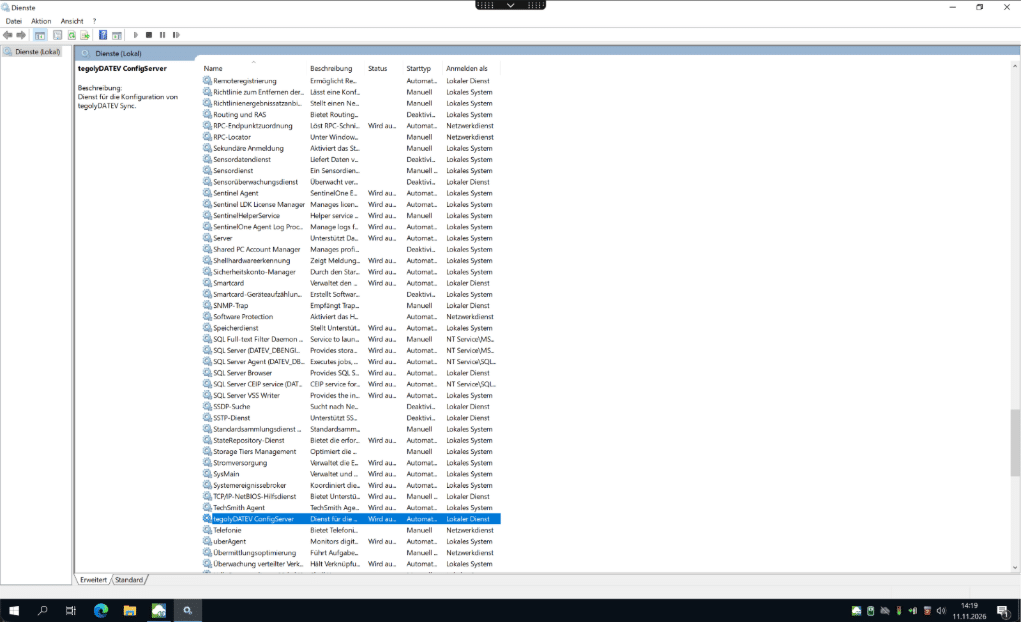
Check service status after restart
tegolyDATEV Installation #
The tegolyDATEV is used to transfer documents from DATEV to tegolySIGN. The settings are obtained centrally via the tegolyDATEV Sync.
- The installation of tegolyDATEV must be done on all terminal servers
- Administrator rights are required for installation
- The program communicates via the following ports: 9193 UDP, 9190 TCP. Please ensure that the ports are enabled
- The program retrieves the address of tegolyDATEV Sync on first startup
Here you can find the installation file of tegolyDATEV.
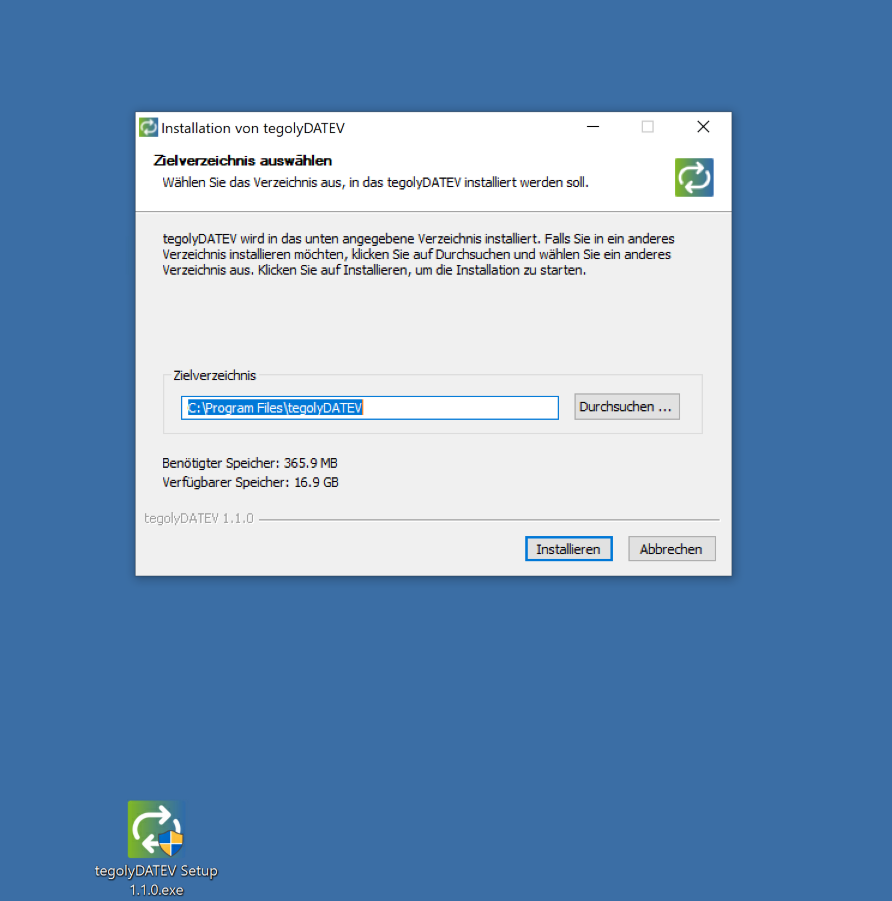
Installation of tegolyDATEV
Then start tegolyDATEV. An initialization may be displayed at the first start. Then close tegolyDATEV again. tegolyDATEV is opened automatically when documents are transferred from DATEV.
Please restart the DATEV workstation.
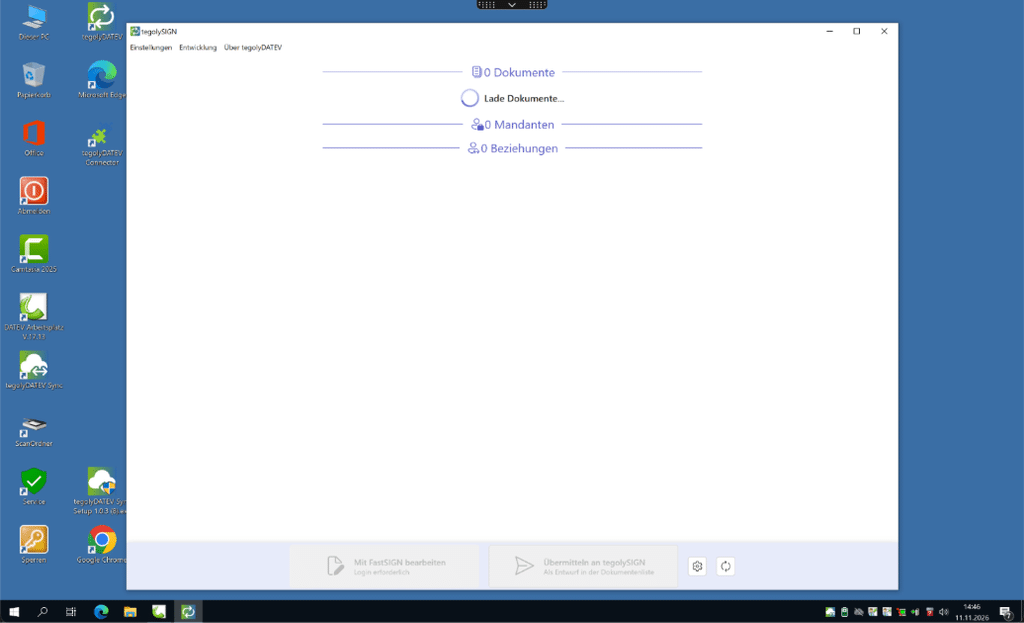
Settings #
If it becomes necessary to change the ports, this can be done at: [tegolyDATEV]/resources/.env
Logs are at: [AppData]/Roaming/tegolyDATEV/logs