In this guide, we’ll show you how to create a shortcut to tegolySIGN On-Site Admin Portal and tegolySIGN On-Site on the iPad Homescreen.
Please download this icon to your iPad. It is needed later so that a tegolySIGN icon can be created on the iPad home screen. It can also be opened on the iPad via this link: https://doc.tegoly.com/docs/install/homeipad

Create a link using shortcuts #
Go to iPad Home Screen.
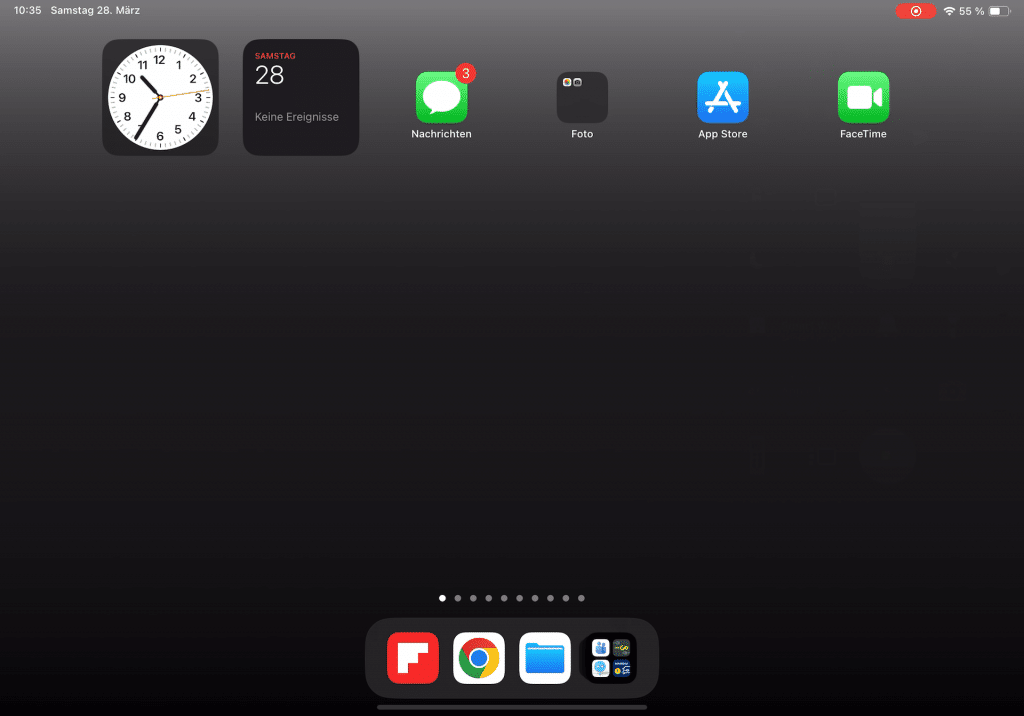
Swipe down from the top of the free area and enter shortcuts in the search bar.
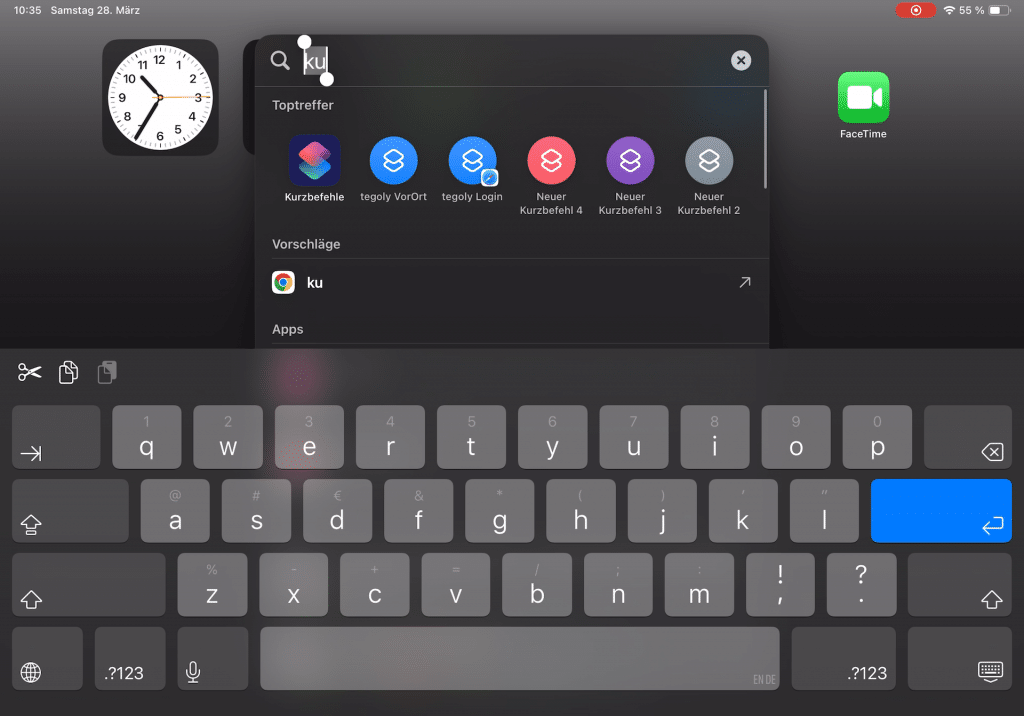
In the Shortcuts app, create a new shortcut via the + button.
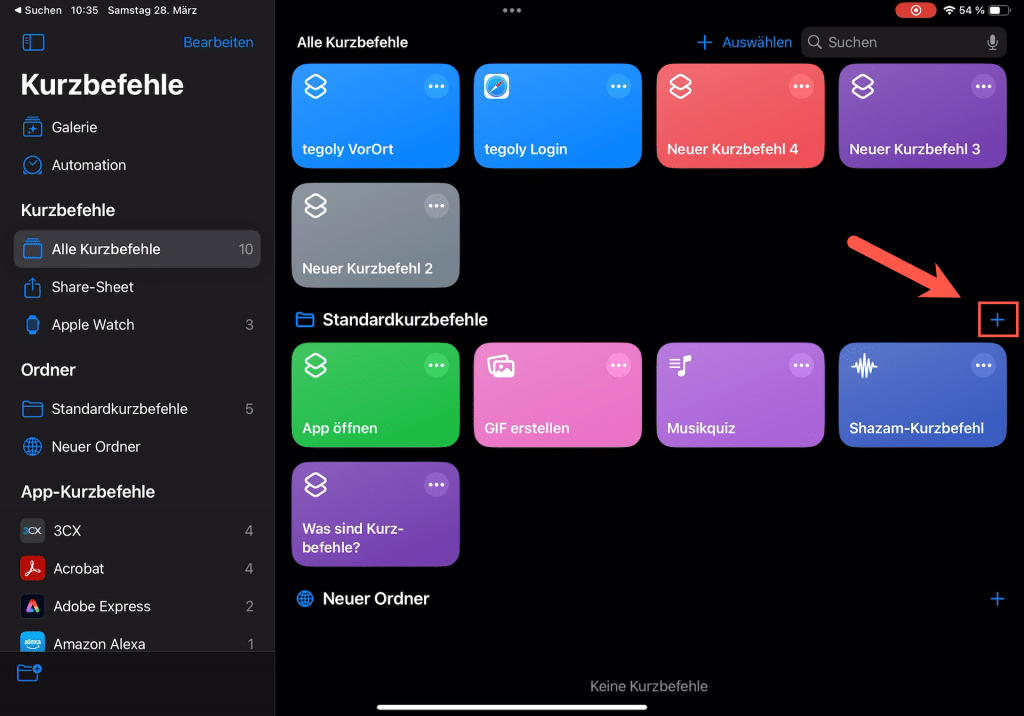
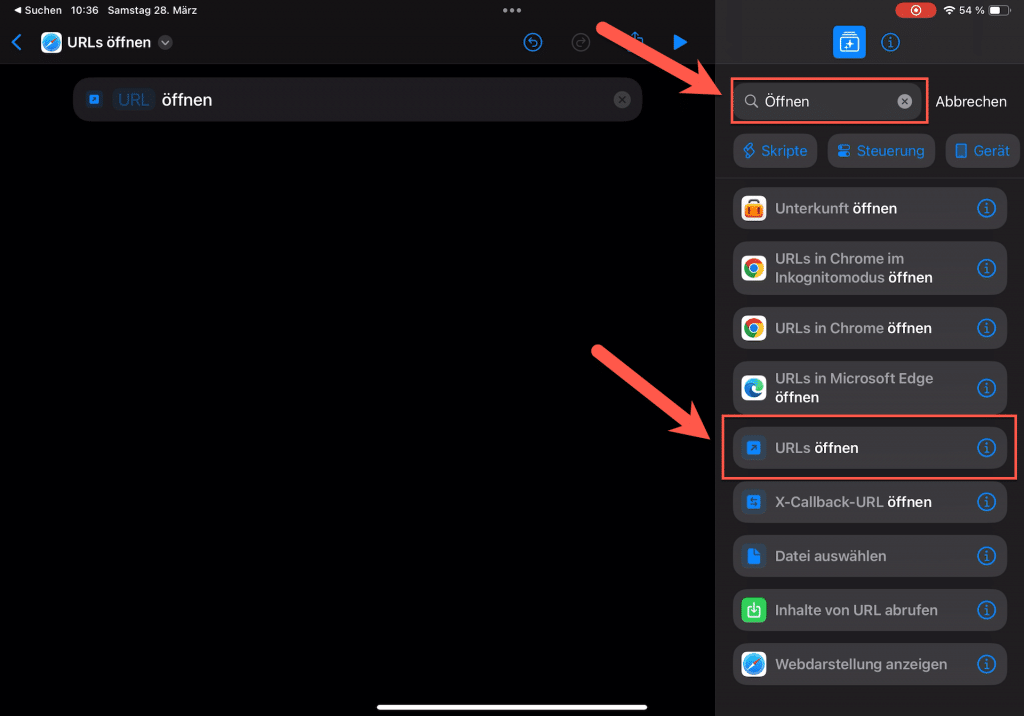
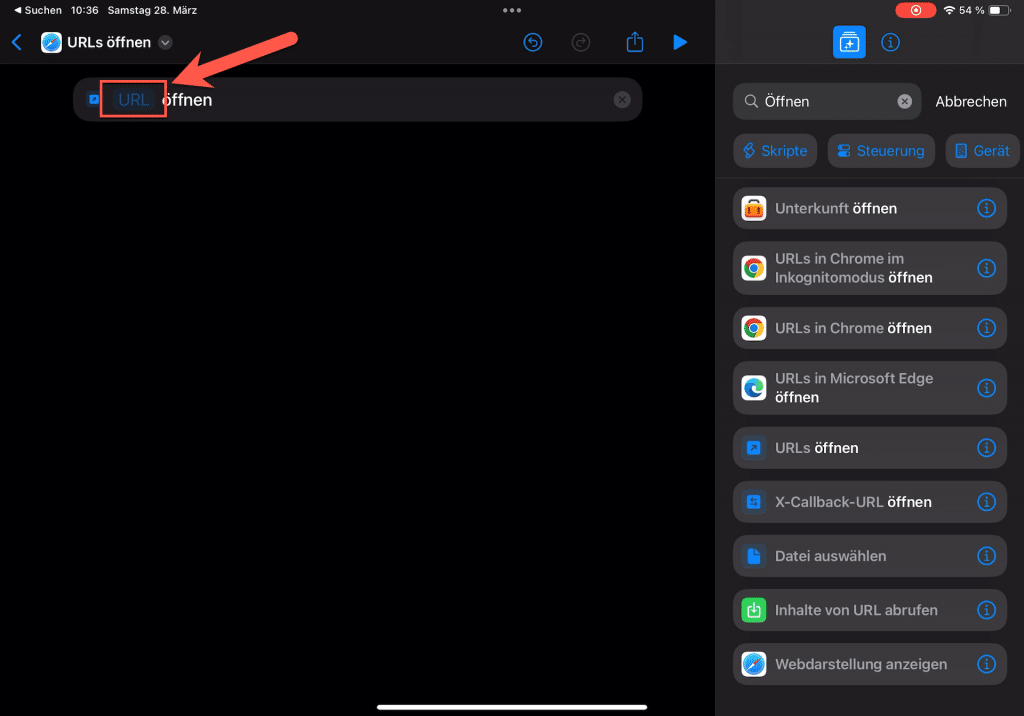
Go to the search box in the top right corner and type Open . Then select the Open URLs command. To do this, scroll down the list.
Click URL.
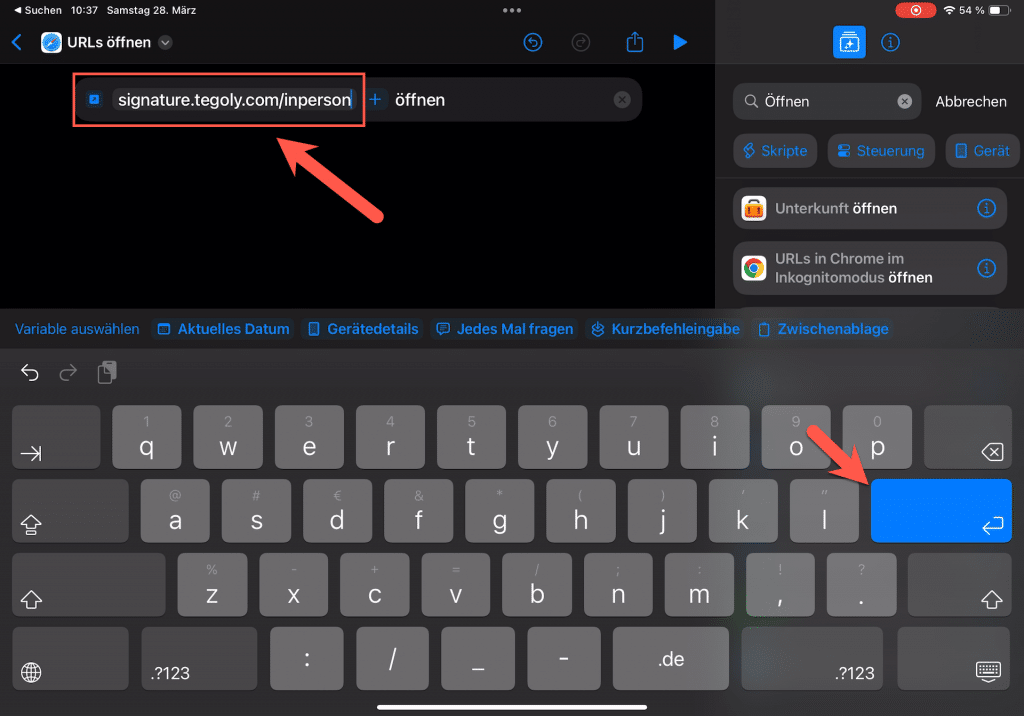
Enter the address: signature.tegoly.com/inperson
Then click Enter.
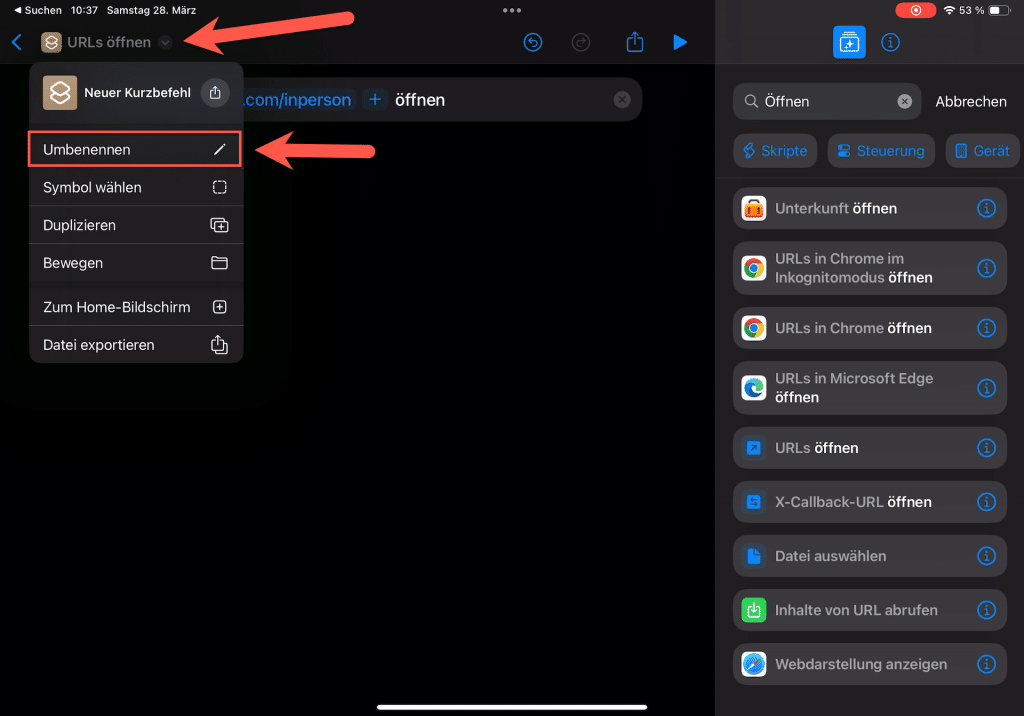
Click the small arrow next to Open URLs . And then click Rename.
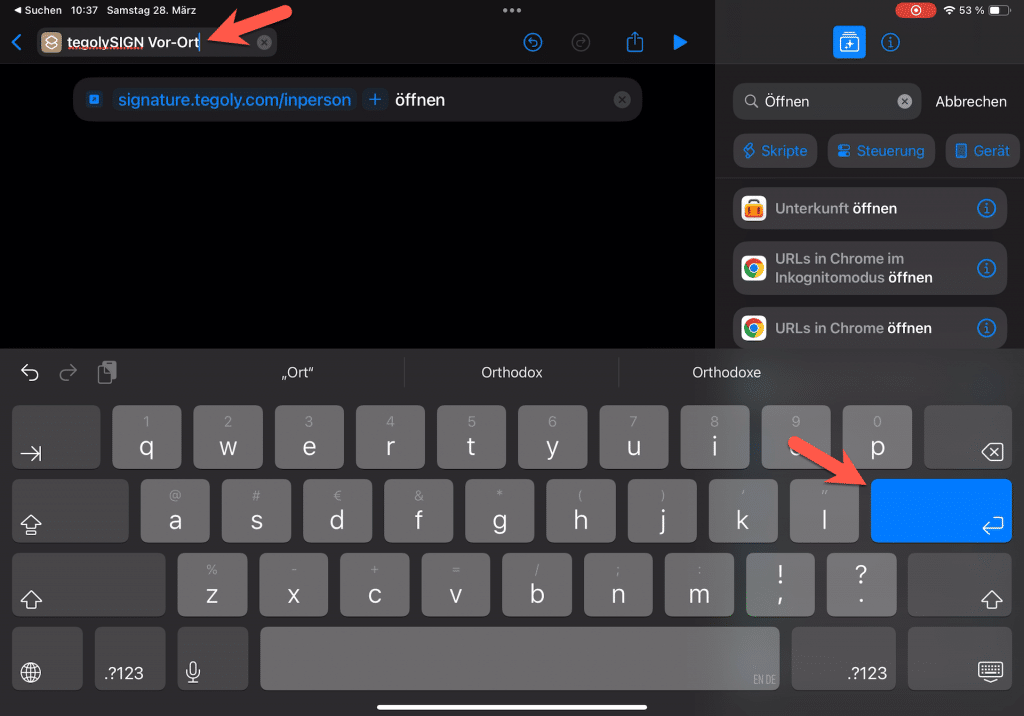
Change the name to e.g. tegolySIGN on-site. Confirm this with Enter.
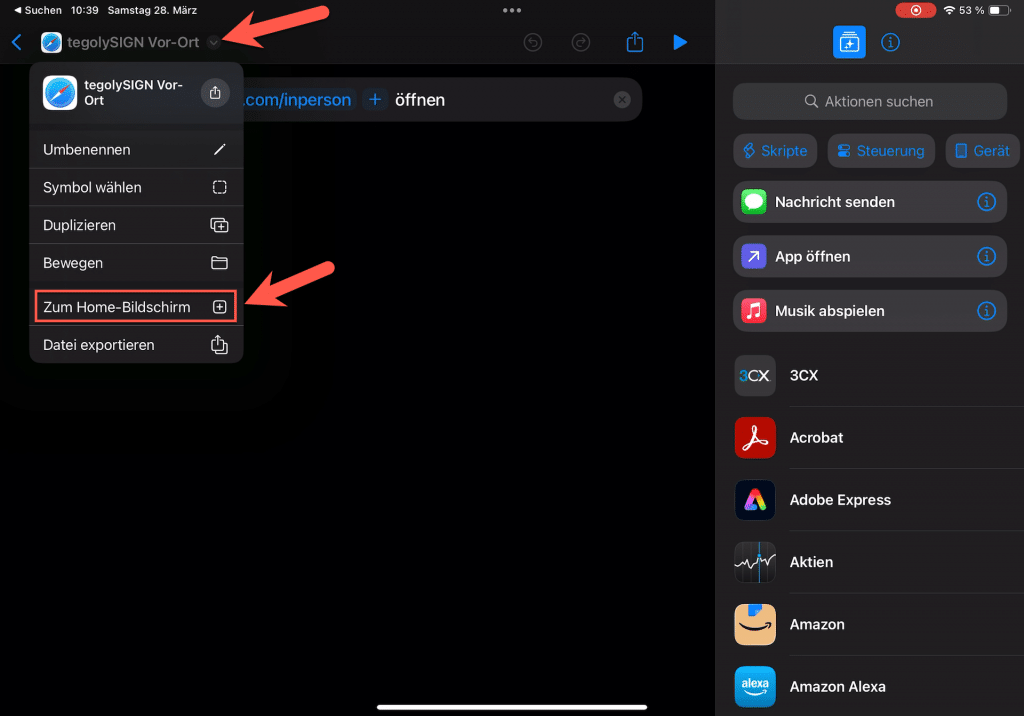
Click the small arrow next to tegolySIGN On-Site and select Go to Home Screen.
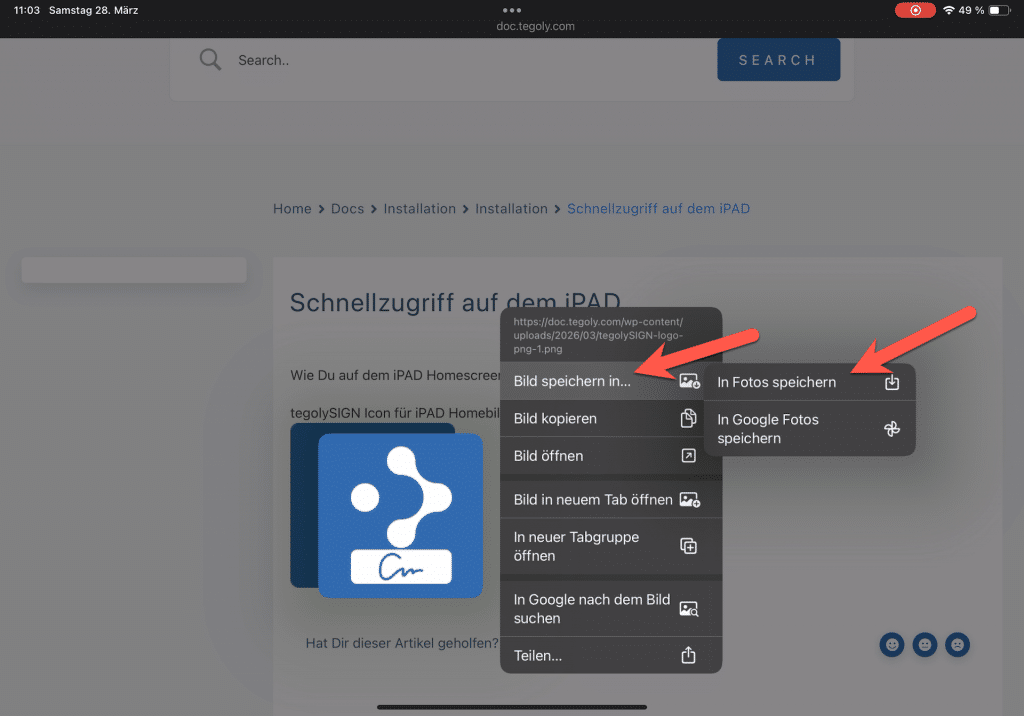
Go to our website under https://doc.tegoly.com/docs/install/homeipad and download the image. To do this, press and hold on the icon until the menu appears. Select Save Image To… and then Save to Photos.
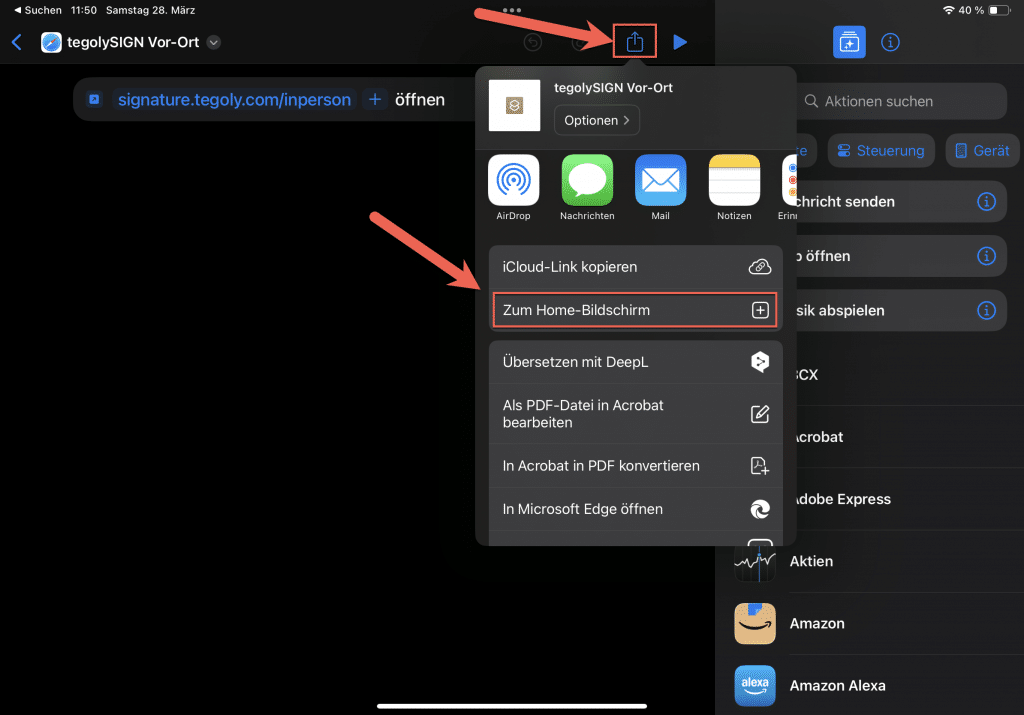
Click the Share icon, then click Go to Home Screen.
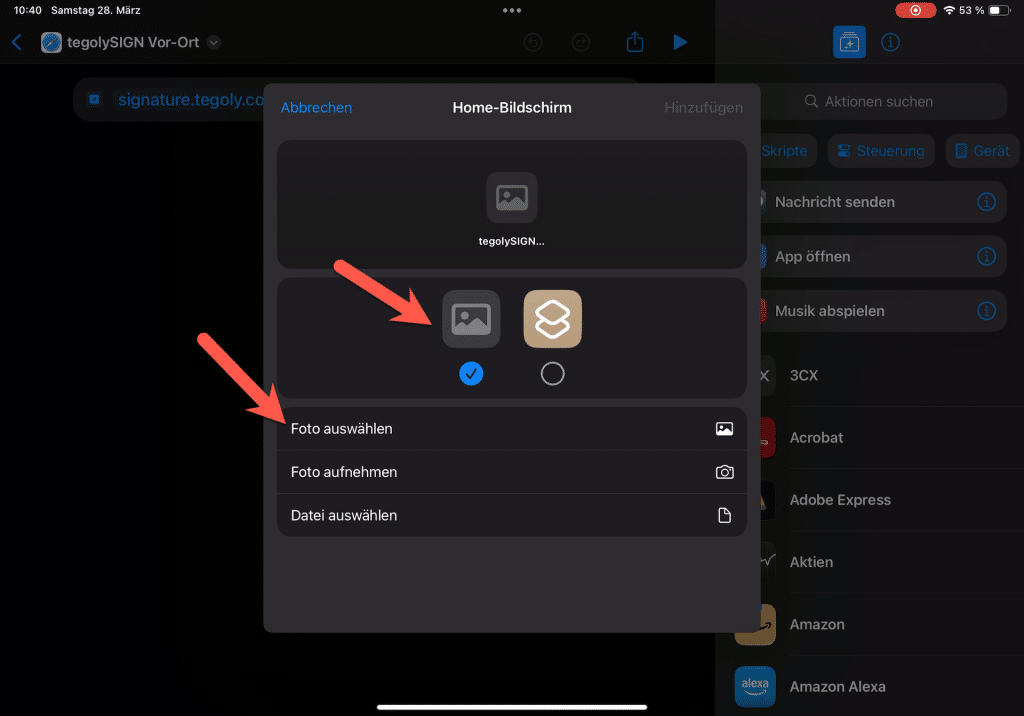
Click on the left icon and then click on Select photo.
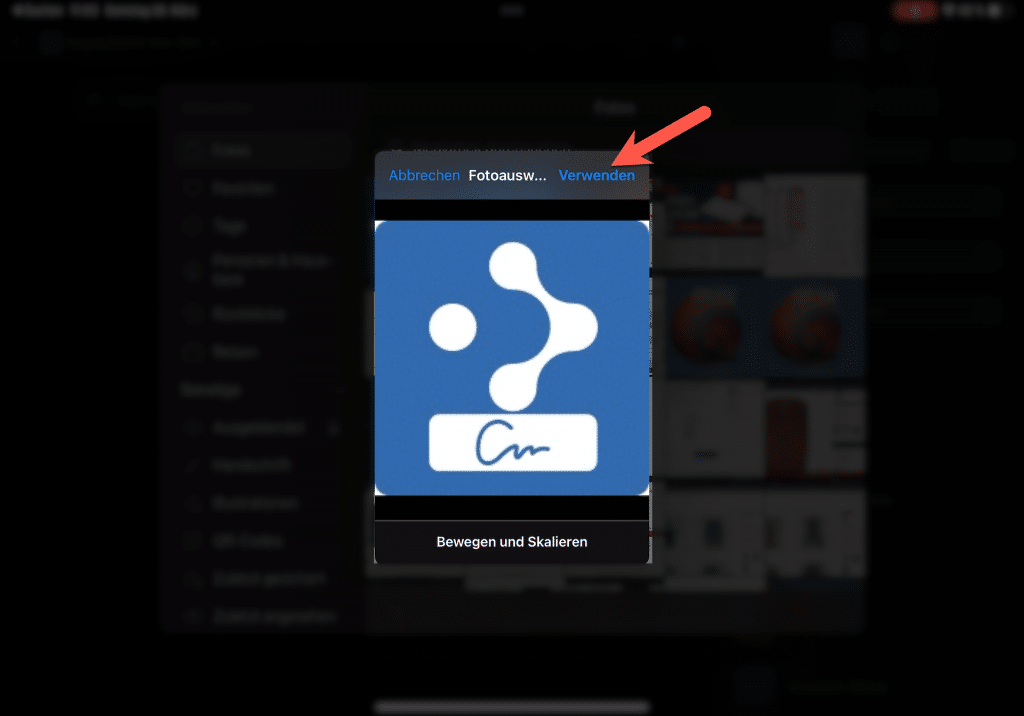
Now Photos opens. Select the previously saved icon and click Use.
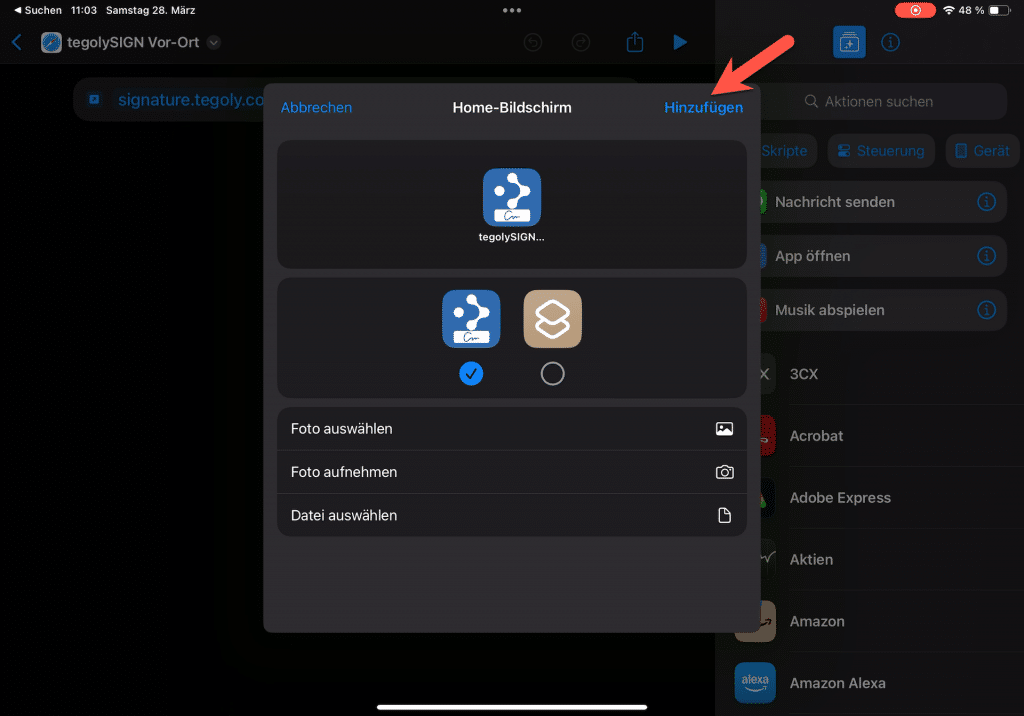
Click Add.
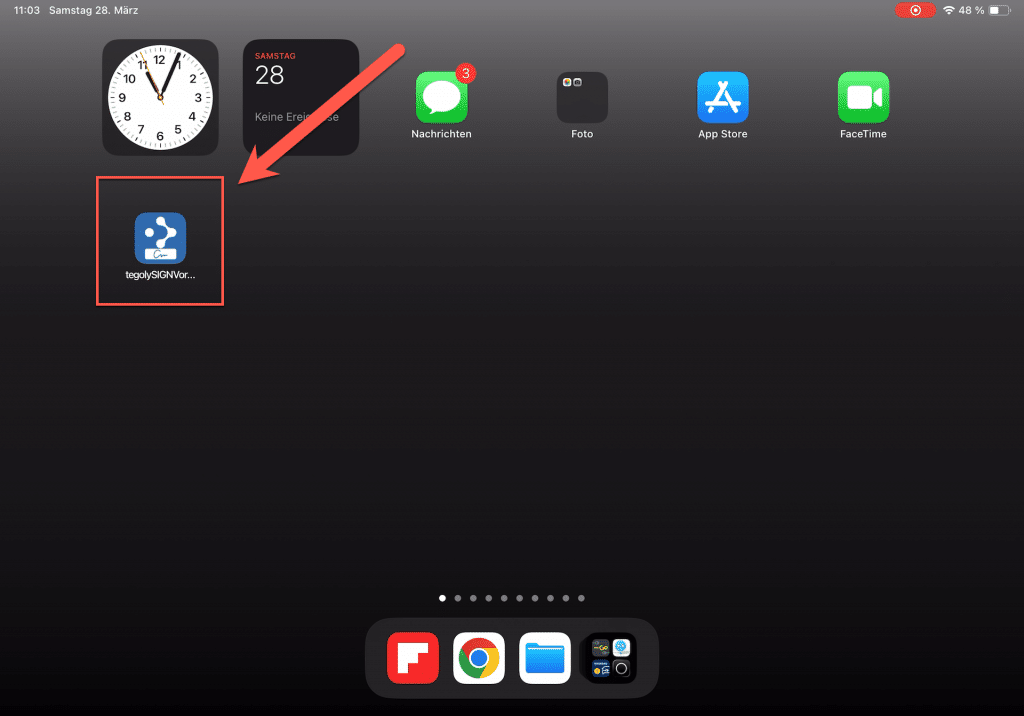
Now you will find an icon on your home screen with the direct link to tegolySIGN on-site.
Create more links #
You can create another link for the tegolySIGN on-site admin portal. Start again at the top with the instructions. In the step address take this link: signature.tegoly.com/inpersonadmin