With tegolySIGN on-site, documents can be signed on-site, e.g. directly in the office. Here, the document to be signed is sent to a tablet (e.g. an iPad with a pen). On the tablet, only a web browser is required.
On-site signatures can also be mixed with remote signatures, so that, for example, one person signs on-site and another person who is not on-site signs.
Start on-site signing #
To do this, start a signature workflow and to the Signer item, add a contact via “Add on-site contact“.
Of course, contacts can also be selected from the list, they will then receive an e-mail with the request to sign, but you can also transfer the documents to be signed to the on-site portal via the document list (see “Transfer documents to the on-site portal”).

A new window opens in which the contact with first and last name is created.


If the contact does not appear immediately, go to the search and search for the contact.

Drag the contact as usual to the place on the document where it should sign and go as normal until done.

If you now click on ‘Send‘, the document will be transferred to the on-site portal.
The prerequisites for this are:
1. The portal is started
2. There are only on-site signatories on the document.
Transfer documents to the on-site portal #
You can transfer documents from the document list to the on-site portal at any time, so that they can be signed immediately on site.
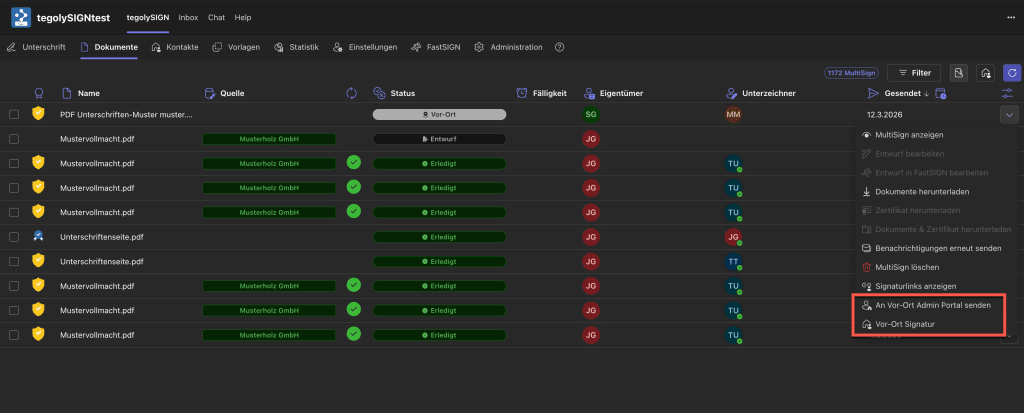
Go to the document list and click on the “Edit arrow” for the corresponding document. There are two variants of how the document is transferred.

Variant 1: Documents should be made available for later signing #
As an example:
Client comes to the law firm in the evening for a meeting with the StB. The secretariat prepared the document and made it available in the Admin Portal. Now the StB opens the on-site admin portal on his desktop PC in the meeting. Then he can transfer the document to the signature tablet.
Prerequisite:
- StB is created as an on-site admin. You can find out how this works here.
- The StB does not need a tegolySIGN license.
Necessary steps
- Prepare document
- Transfer document to Admin Portal
- Start the Admin Portal on your desktop
- Start on-site on tablet
- Transfer a document from the Admin Portal
1. Prepare the document #
You can find out how to prepare the document for an on-site signature here.
2. Transfer document to on-site admin portal #
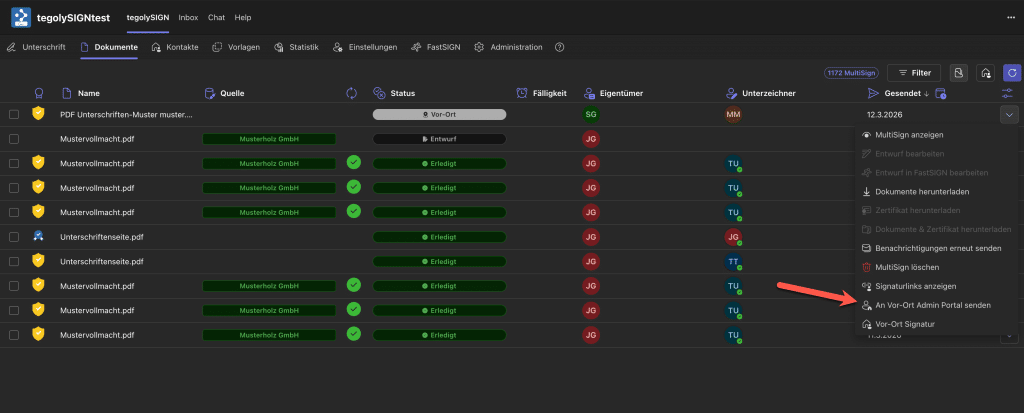
Select Send to On-Site Admin Portal, this will transfer the documents to the Admin Portal and can be selected at any time.
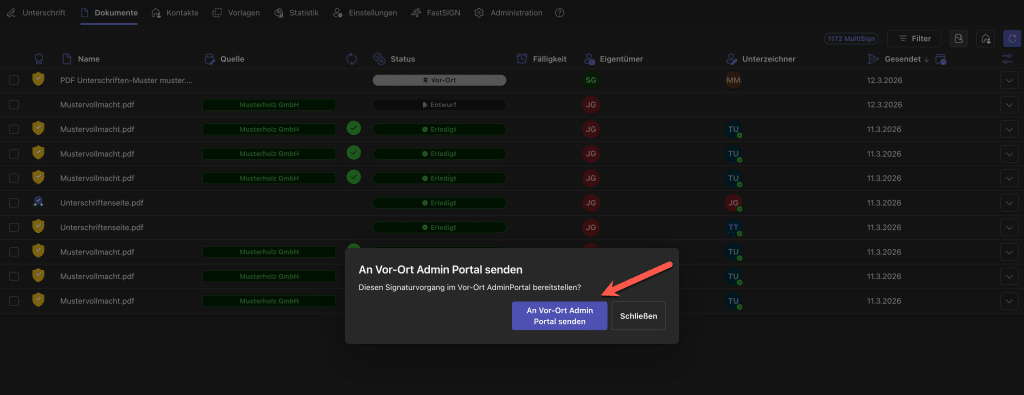
Please confirm the sending. Only then are the documents in the admin portal.
Now the document is available in the tegolySIGN on-site admin portal.
3. Log in to the On-Site Admin Portal #
Start the on-site admin portal e.g. on your PC. It opens via this link: https://signature.tegoly.com/inpersonadmin/
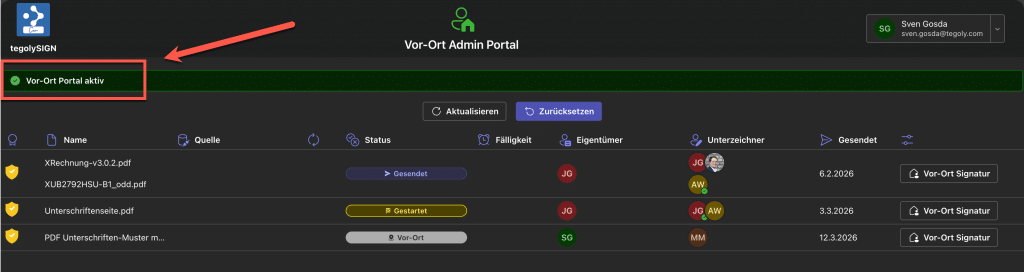
Please use one of the registration options, depending on whether you have a Microsoft M365 account or a login with email. Then the portal starts as in the picture.

4. Start on-site portal on tablet #
Next, start the on-site portal for the signatures on the tablet. The link in the top line can be copied and started on an iPad, for example. You can find out how to register for the on-site portal here.
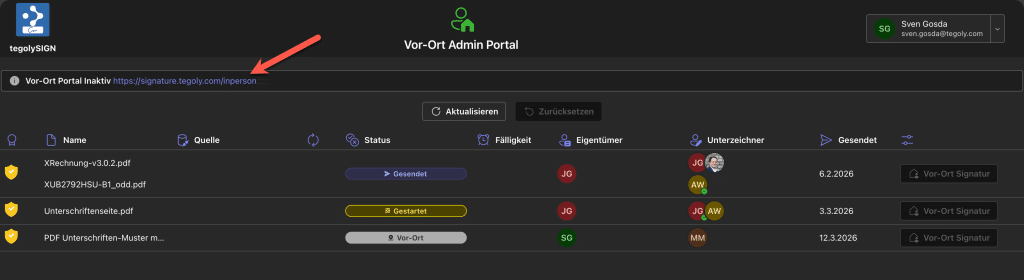
Once the on-site portal is active, it will be shown as active.
5. Transfer documents from the admin portal #
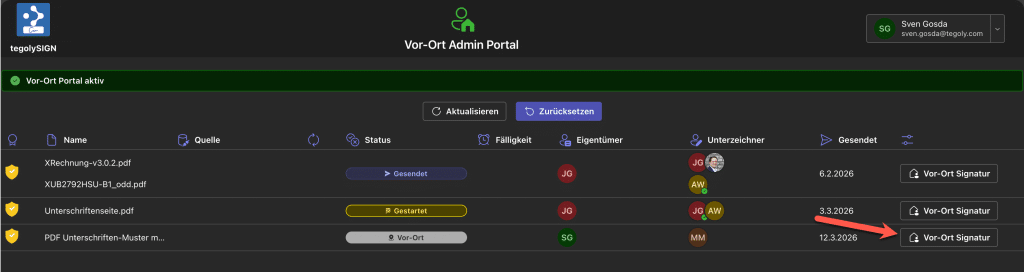
Now the documents can be handed over for signature. To do this, click on the On-Site Signature button.
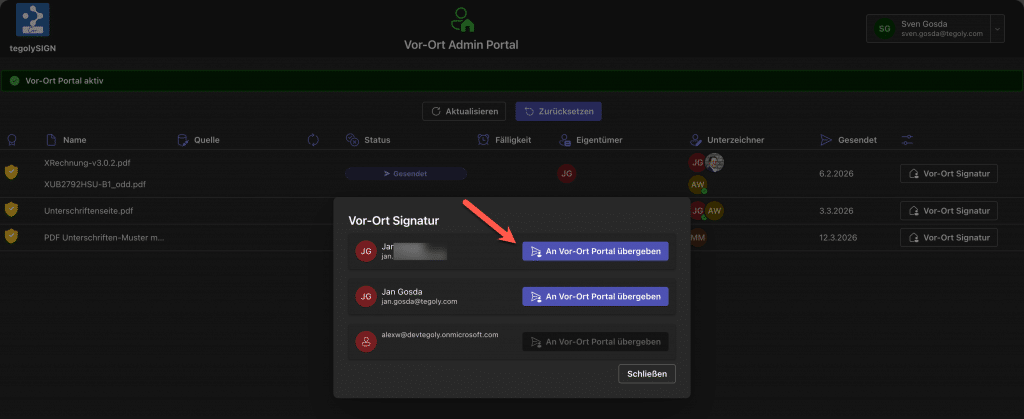
Now you can choose who should sign. Simply select the appropriate person and by clicking on the button, the documents will be transferred to the on-site portal for signature.
Option 2: Sign documents directly on site #
This variant allows you to sign a document immediately on the tablet. Here you need a tegolySIGN license.
Start the on-site portal on the tablet #
You can start the tegolySIGN on-site portal in any web browser. To do this, go to https://signature.tegoly.com/inperson and log in with either your Microsoft login or your email address.

If the login is successful, the portal is ready to receive documents.

Transfer the document to the on-site portal.
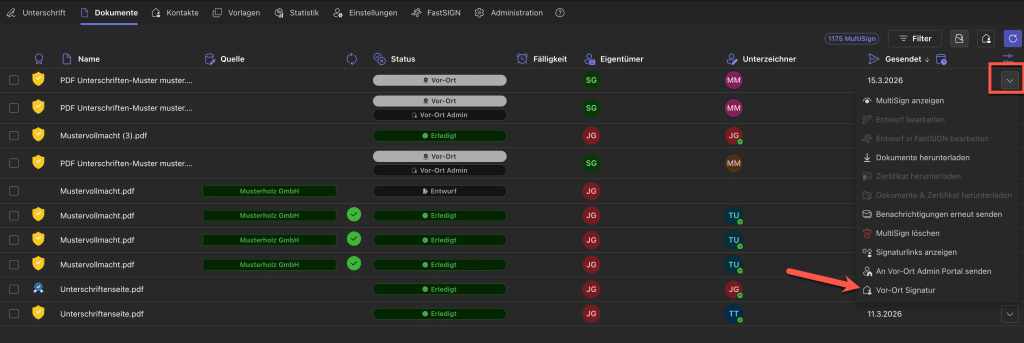
Select the person you want to sign and start the process.
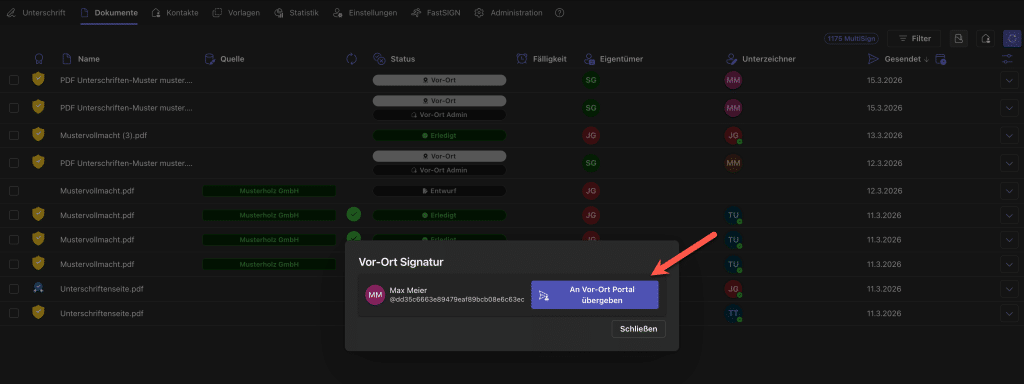
Then the document appears on the tablet for signature.

Status #
The on-site portal outputs various status messages, which you will see in the upper area of the tegolySIGN application, not in the portal itself. Here you can also use the ‘Reset’ button to transfer the document from the on-site portal back to the tegolySIGN application.

You can use the button “Check V or Location Signature” to check the status of the portal at any time and see if files are ready for signature.
