Directly via drag and drop #
To add contacts to a document for signature, there is a list of internal signers on the right. There, the required contacts are ‘picked out’.
In our example, we want Alex Wilber and Adele Vance to be added to the document for signature.
This is done by drag and drop. To do this, click on Alex Wilber, for example, and then drag the contact onto the document. At this moment, the document is displayed in green hatched.
You can now drop the contact anywhere in the green area.
If the hatch turns red, the contact cannot be placed there because it may be outside the document. After Alex has been inserted, Adele now follows.
Immediately after that (Adele is still greyed out in the left area under Alex) you can also add other fields such as
- a date
- a name
- a place
- a free text
Search in signatories #
If a person is not displayed, they can be searched by first name or last name using the search box. In our example, we’re looking for Isaiah Langer.
Click in the search field and enter the first three letters of the contact you are looking for, i.e. Isa.
Isaiah also appears immediately and can be added via drag and drop.
Create an additional contact #
The signatories only show contacts who are employed by your company and those that you have already created via the “Add Contacts” button.
For example, if you are preparing a document for signature and find that a contact is not yet available, you can easily add it during the process. To do this, click on ‘Add contact’.
Another window will open where you can quickly enter all the necessary data, such as your email address, first and last name.
If necessary, you can also include the mobile phone number. This is important for an advanced electronic signature (FES).
Once you have entered all the necessary data and clicked Save, the contact is in “Signer” and can be added to the document.
The contact created here is now also available in the Contacts menu and can be edited or deleted there if necessary.
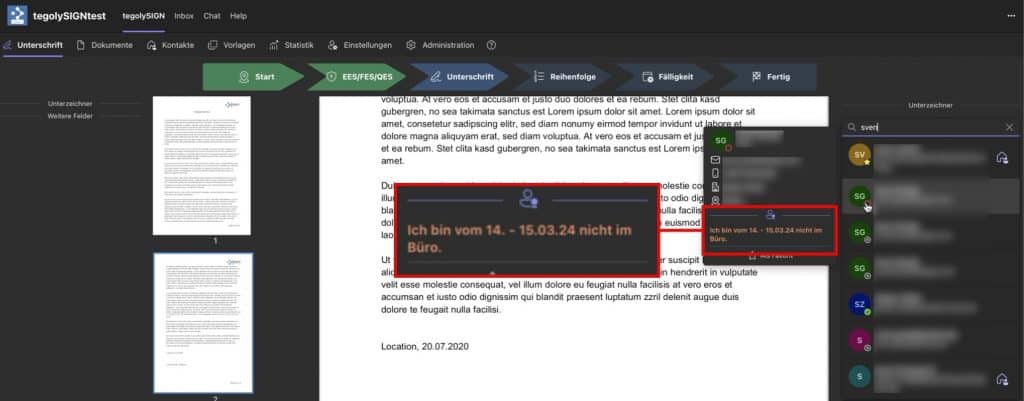
Absence Indicator #
In the tegolySIGN Teams app, you will see the traffic jams of the contacts.
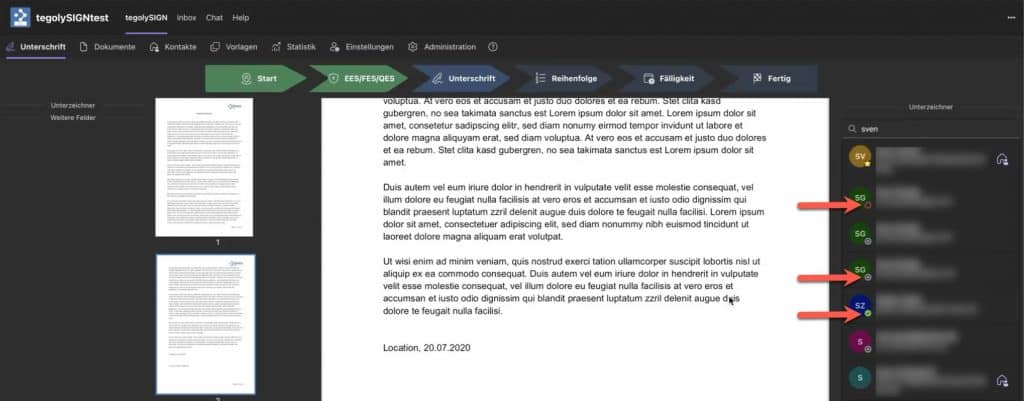
If you hover over the avatar (SG), detailed information will be displayed. The out-of-office message is also displayed here.