Skip to content
tegolySIGN
Home tegoly Support German

Introduction

2
  • What is tegolySIGN
  • tegolySIGN Roadmap

First steps

4
  • Installation of the TEAMS APP
  • Grant access
  • How to get started with a trial subscription
  • How do I log in to tegolySIGN

tegolyDATEV Connector Installation

5
  • Installation tegolyDATEV Connector
  • Configuring the tegolyDATEV Connector
  • Terminal server
  • Multiple Terminal Servers
  • Desktop

Signing with tegolySIGN

16
  • How to prepare documents for signature
  • The Enterprise Version
  • Add contacts to the document
  • 2-factor authentication in the Enterprise version
  • Order
  • Maturity
  • Ready
  • Stamp
  • Favorites
  • Forms
  • Signing with QES
  • Authenticate for QES
  • Sign with Verimi eID
  • MultiSign
  • Signature link
  • Forwarding Signature Operations

Signing documents

4
  • Open a document
  • Signing a document
  • Reject
  • Save

Statistics

1
  • Statistics on your documents

Documents

4
  • List of all documents
  • Sort documents
  • Document Filters
  • Process documents

Administration

10
  • Statistics
  • Assign users with tegolySIGN’s Teams app
  • Assign Administrators
  • Subscription Management
  • Features in the Enterprise Version
  • General settings
  • DATEV
  • Assign users in the tegolySIGN WebApp (not MS Teams)
  • tegolySIGN Portal
  • Group function

Binder

1
  • The tegoly binder

General information on the digital signature

2
  • The eSignature
  • Your review helps us a lot!

DATEV-DMS

8
  • Preconditions
  • Document(s) from DATEV handed over for signature
  • Installation and setup
  • How does my signed document get back in DATEV-DMS
  • tegolySIGN Connector – Configure DATEV status
  • Transfer e-mail addresses from the client
  • tegolyDATEV Connector Update
  • Start tegolySIGN in DATEV

Power Automate Connector

2
  • A workflow example
  • What is Microsoft Power Automate

Templates

3
  • Create Templates
  • Send Templates
  • Edit templates

Trial period

1
  • Onboarding

DATEV Installation

6
  • Installation tegolyDATEV Connector
  • Configuring the tegolyDATEV Connector
  • Terminal server
  • Multiple Terminal Servers
  • Desktop
  • How do I log in to tegolySIGN

tegolySIGN Portal

1
  • The tegolySIGN Portal
  • Home
  • Docs
  • tegolySIGN
  • Signing with tegolySIGN
  • 2-factor authentication in the Enterprise version
View Categories

2-factor authentication in the Enterprise version

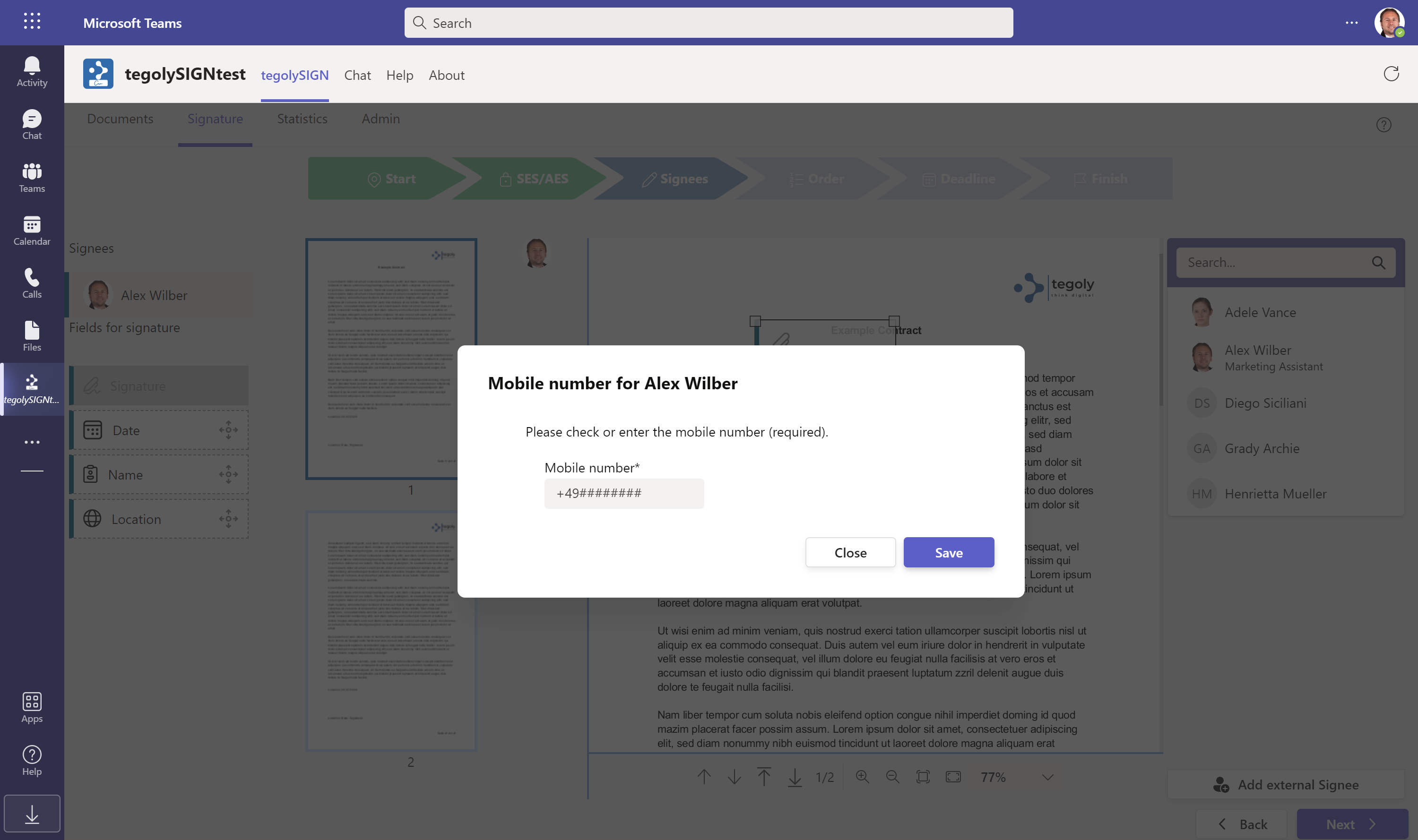
If you have the Enterprise version and want to sign a document with “Advanced Electronic Signature (FES)”, a mobile phone number must be stored for the signer. The signer then receives a six-digit pin code before they can sign the document. You will automatically be prompted to enter a mobile phone number.


Here is an example of an internal signatory. (If a mobile phone number is set in Active Directory, it is automatically adopted).
 

https://cdn.docsie.io/workspace_WFO9wyps5FYHnXnxE/doc_BNwlSzPvaIsWukMlP/file_k8yx3av3EzaiNVMof/7b819254-7c3b-4a4a-eb18-15461eee043caes_intern.png


For external signatories, you must always enter the mobile phone number. Please enter them in international format.


https://cdn.docsie.io/workspace_WFO9wyps5FYHnXnxE/doc_BNwlSzPvaIsWukMlP/file_IBBMOqmmEd5ixhFnL/75ea818f-87f6-5874-acf5-ad56507c1522aes_extern.png


When a person is selected, the signature field is automatically displayed. Below the list, other fields become active, such as date, name, place. You can also drag these onto the document.


Here, the color marking helps you so that you can see at a glance which fields belong to whom.


https://docsie-app-media.s3.amazonaws.com/media/image4.pngd1fcbdd9d27a681db5866170219bd93f


Users can be in a document as often as they like and on any number of pages.
Hat Dir dieser Artikel geholfen?
tegolySIGN

© 2025 tegolySIGN